

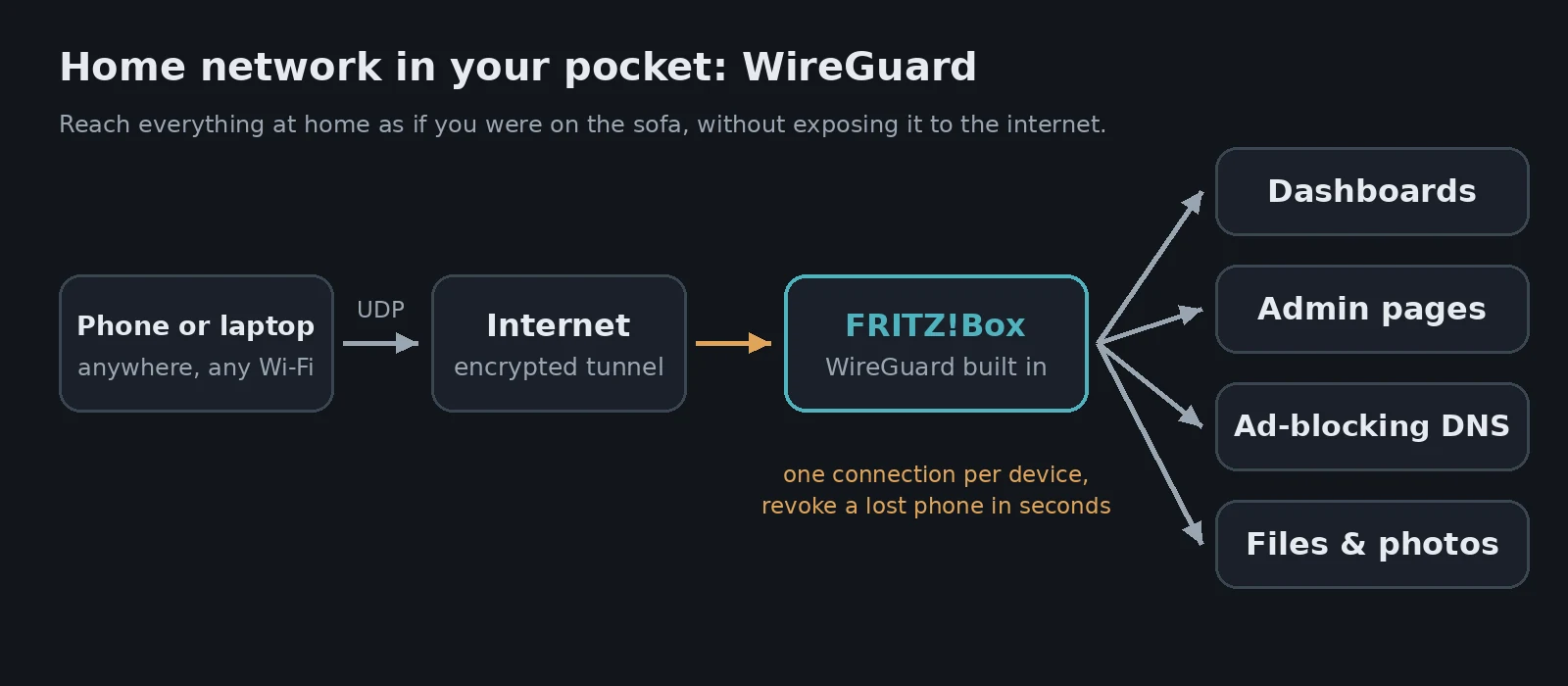
A lot of what I self-host is deliberately kept off the internet: dashboards, admin pages, the DNS consoles. That’s safer, but it used to mean none of it worked when I was away from home. WireGuard on the FRITZ!Box fixes that. Flick a switch on my phone and I’m back on the home network, wherever I am.
Why a VPN instead of opening ports?
Every service you expose to the internet is something attackers can poke at. Things like Homarr, Portainer, the Technitium consoles and the WordPress admin area have no business being public. I even limit this blog’s login page to my home network.
A VPN gives you the best of both: those services stay invisible from outside, but your own devices can reach them through an encrypted tunnel, as if you were at home. As bonuses, you get safe browsing on dodgy public Wi-Fi, and your home ad-blocking follows you around.
Why WireGuard?
WireGuard is a modern VPN protocol: fast, simple and very secure, with a tiny codebase compared with older options like IPsec or OpenVPN. Phones barely notice it’s running, so it’s realistic to leave it on. Best of all, recent FRITZ!Box models have it built in, so there’s no extra server to run.
Before you start
- FRITZ!OS 7.50 or newer. Check it under System → Update.
- A public IPv4 address. If your provider puts you behind carrier-grade NAT (DS-Lite), inbound VPN connections can’t reach you. If you can already host websites from home, you’re fine.
- MyFRITZ! (recommended). Under Internet → MyFRITZ! Account, register for free. Your box gets a permanent address that follows your home IP when it changes, so the VPN keeps working.
Setting it up
- In the FRITZ!Box, go to Internet → Permit Access → VPN (WireGuard).
- Click Add VPN connection and choose Connect a single device.
- Give it a clear name, such as
Mike-Phone, and finish the wizard. - Confirm the change when the FRITZ!Box asks. It makes you press a button on the box or enter a code, a nice protection against someone changing things remotely.
- The FRITZ!Box shows a QR code and offers a config file to download.
On a phone, install the official WireGuard app, tap + → Scan from QR code, and you’re done. On a Windows or Linux laptop, install WireGuard and use Import tunnel from file.
Repeat this for each device, giving every one its own connection. If a phone is ever lost, delete just that connection and nothing else is affected.
Full tunnel or home only?
In the WireGuard app, the Allowed IPs setting decides what goes through the tunnel:
0.0.0.0/0sends all traffic through home. Use it on public Wi-Fi, and when you need services that only accept connections from your home IP address, like my WordPress login.192.168.0.0/24(use your own network range) sends only home-network traffic through the tunnel, and everything else goes direct. It’s lighter on your home upload speed, and fine for dashboards and file shares.
You can keep both as separate tunnels in the app and switch between them as needed.
Test it
Turn off Wi-Fi on your phone so you’re on mobile data, switch the tunnel on, and open something that only exists at home, like a dashboard by its local IP address. If it loads, you’re in. Then try a site you’ve blocked at home, and it should be blocked on mobile data too.
Tip Leave the tunnel switched on when you’re on public Wi-Fi in cafés, hotels and airports. Everything travels encrypted to your house first, so nobody on that network can snoop on it.
Keep it tidy
- One connection per device, and delete connections for devices you no longer use.
- Keep FRITZ!OS updated. The box is now the front door to your whole network. Mine updates itself automatically.
- Turn on two-factor confirmation for FRITZ!Box changes, so nobody can quietly add a VPN connection.
Warning Anyone with a device’s WireGuard config has full access to your home network. Treat the QR code and config file like a house key: don’t email them around or leave them in your downloads folder.
Verdict
This is one of the best-value changes I’ve made. Ten minutes in the FRITZ!Box interface, and everything I self-host is available from anywhere, without opening a single extra port to the internet.
Leave a Reply